

If your team or organization are wondering where to start with website accessibility, here’s some good news: you don’t need to fix everything at once. 96% of the web accessibility issues, according to the 2026 WebAIM Million report scan of one million home pages, fall into just six categories. Those same categories have topped the list for seven years running. In this blog post we will talk about how to tackle three of these issues: low-contrast text, missing image descriptions, and unlabeled form fields.
Fixing these won’t make your site fully compliant on its own. However, it will remove some of the most common barriers for your website users, and it’s a solid first step in reducing legal risk. Web accessibility simply means building your site so everyone can use it, including people who are blind, have low vision, have motor disabilities, or navigate with a keyboard or screen reader instead of a mouse.
Why start here?
The legal benchmark most courts point to is the Web Content Accessibility Guidelines (WCAG). Lawsuits are a real concern: DigitalApplied counted 4,928 US web accessibility lawsuits in 2025. But the better reason to act is practical: these three issues sit on the pages where people call you, book you, or buy from you.
Issue #1: Low-contrast text
What it is: Text that blends into its background (ex.light gray on white, white text on a pastel button).
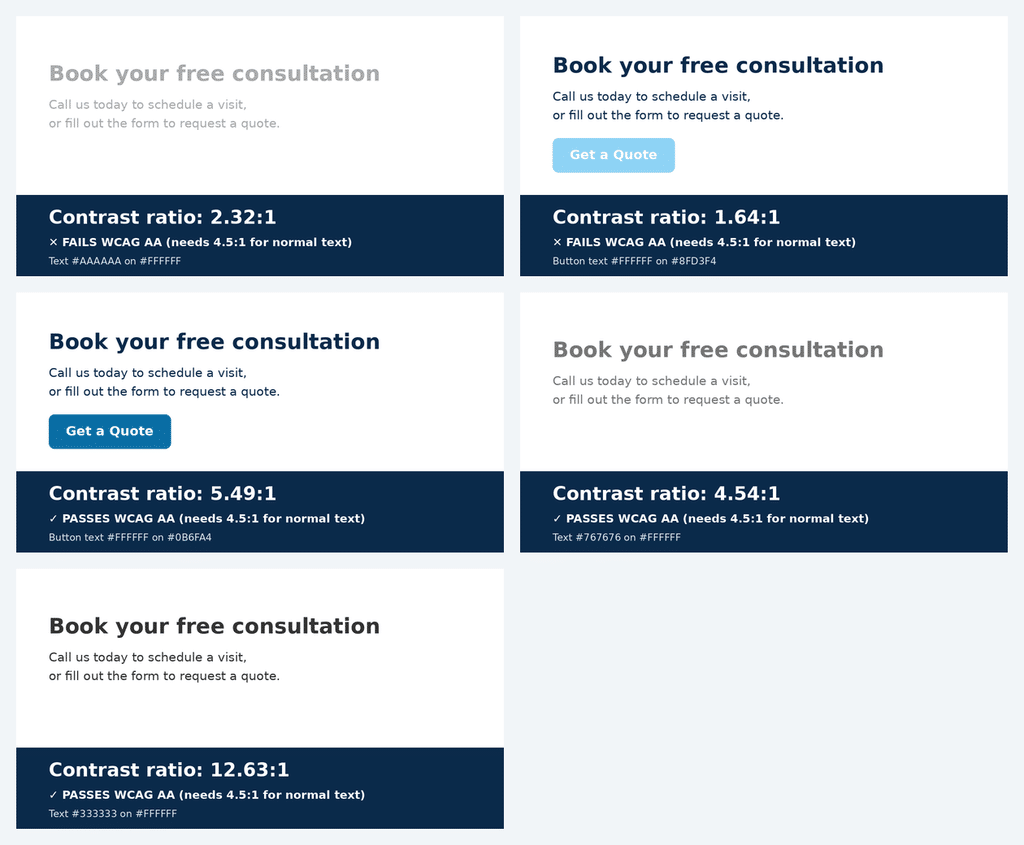
Who it affects: People with low vision or color blindness, and anyone reading their phone in bright sunlight.
How to fix it:
- Know the target. Accessible Web notes standard text needs a contrast ratio of at least 4.5:1, while interactive elements and graphics need at least 3:1. Large text has a lower threshold of 3:1.
- Test your brand colors. Paste your text and background colors into WebAIM’s free Contrast Checker. If you fail, darken the text or lighten the background a few shades. You can usually keep the look of your brand.
- Check the usual suspects. Placeholder text in forms, button labels, footer links, and text laid over photos fail most often.
- Don’t rely on color alone. Links should be underlined, for example, so they still stand out if the color is removed.
Issue #2: Missing alternative text on images
What it is: Images with no text description, so a screen reader has nothing to read aloud (or reads out a filename like “IMG_4021.jpg”).
How common is it? Missing alt text has been improving slightly, but it still appeared on 53.1% of home pages in 2026. A related trap: in the 2025 report, 44% of images missing alt text were linked images, which leaves links without a descriptive name. A logo that links home, or a photo that links to a service page, needs alt text too. WebAIM: The WebAIM Million – The 2026 report on the accessibility of the top 1,000,000 home pages +2
Who it affects: Blind and low-vision users, plus anyone whose images fail to load.
How to fix it:
- Describe the purpose, not just the picture. Informative images need descriptive alt text, functional images need alt text describing what they do, and decorative images get empty alt text.
- Use before-and-after thinking. Instead of alt=”team photo”, try alt=”Our five-person design team gathered around a whiteboard”. For a linked logo, use alt=”Acme Plumbing – home”, not alt=”logo”.
- Skip the filler. Screen readers already announce “image,” so you don’t need to start with “image of.”
- Be careful with AI-generated alt text. It’s a useful shortcut, but a caution is warranted. Always review it to make sure it captures what the image is actually communicating on your page.
- Use W3C’s free alt text decision tree if you’re unsure how to handle a particular image.
Issue #3: Form fields without labels
What it is: Contact forms, booking forms, and newsletter signups where the input isn’t properly connected to a label. Often the only hint is gray placeholder text that disappears as soon as someone types.
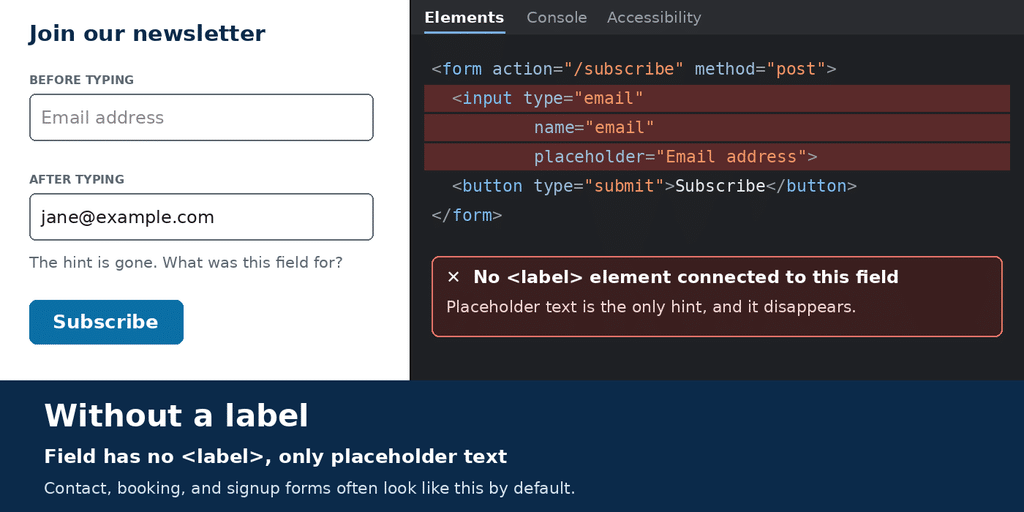
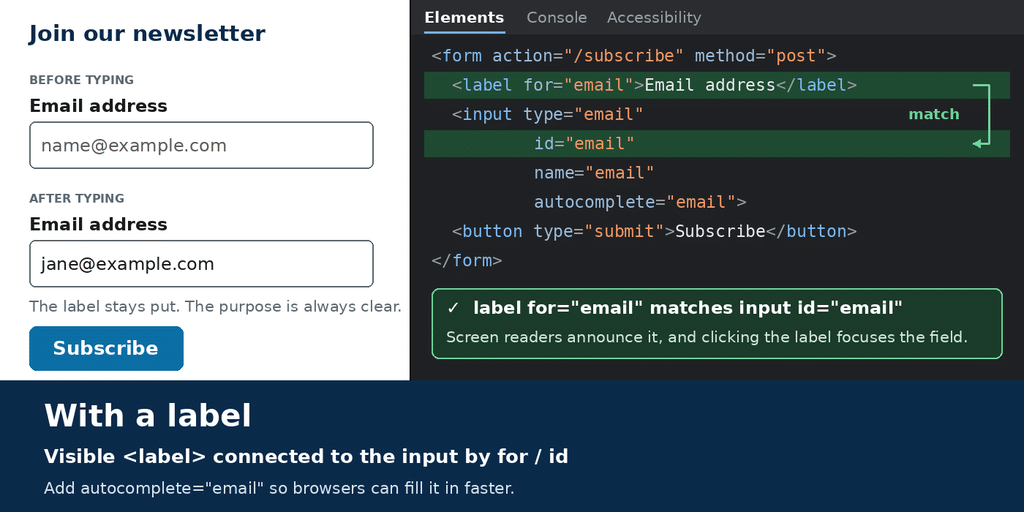
Who it affects: Screen reader users, voice-control users, people with cognitive disabilities who need a persistent reminder of what a field is for, and honestly, anyone who’s ever forgotten what they were typing into a field.
How to fix it:
- Use a visible label for every field. WCAG expects a persistent visible label or instructions wherever a form asks for user input. A placeholder isn’t a substitute, because it vanishes.
- Prioritize the forms that make you money. Start with your contact, quote request, and booking forms. If you use a form builder or plugin, check the live page, since default settings don’t always include proper labels.
How to check your work (for free)
After making these fixes, run your pages through a free scanner like WAVE. Automated tools catch these three issues reliably, but they can’t judge everything. Try tabbing through your key pages with just your keyboard to see whether you can reach and use every link, button, and form field. A scan is a helpful starting point, not proof of compliance.
Where to keep learning: standards and free webinars
Standards and guidance
- The WebAIM Million is an annual report on the most common failures across a million home pages, and a good way to see where sites are stumbling.
- ADA.gov web guidance covers how the Americans with Disabilities Act applies to websites.
Free webinars and training
- AccessibilityOnline is a collaboration between the ADA National Network and the US Access Board. The webinars are free, offer real-time captioning, and run monthly. Recordings are also archived.
- ADA National Network hosts sessions like Web Accessibility in a Nutshell, which covers why accessibility matters, the ADA, WCAG, and common barriers.
- Accessible Web runs 30-minute sessions that combine a short educational segment with open office hours.
Your next step
Pick one page, ideally your contact page or homepage, and run through all three fixes. Check the contrast, add or improve alt text, and label every form field. That single hour of work can meaningfully improve the experience for a lot of your visitors.
Learn more about our accessibility consulting service.
Disclaimer: This post is provided for general informational purposes only and does not constitute legal advice. Regulatory requirements, including those related to WCAG 2.1 AA and healthcare accessibility compliance.